Ticket types (or tiers) let you control how your event is priced, packaged, and sold. Whether you’re offering VIP passes, early bird deals, or group discounts — this is where it all starts.
Where to Set It Up
Go to the Ticketing tab in your sidebar.
If you haven’t added any tickets yet, you’ll see a message:
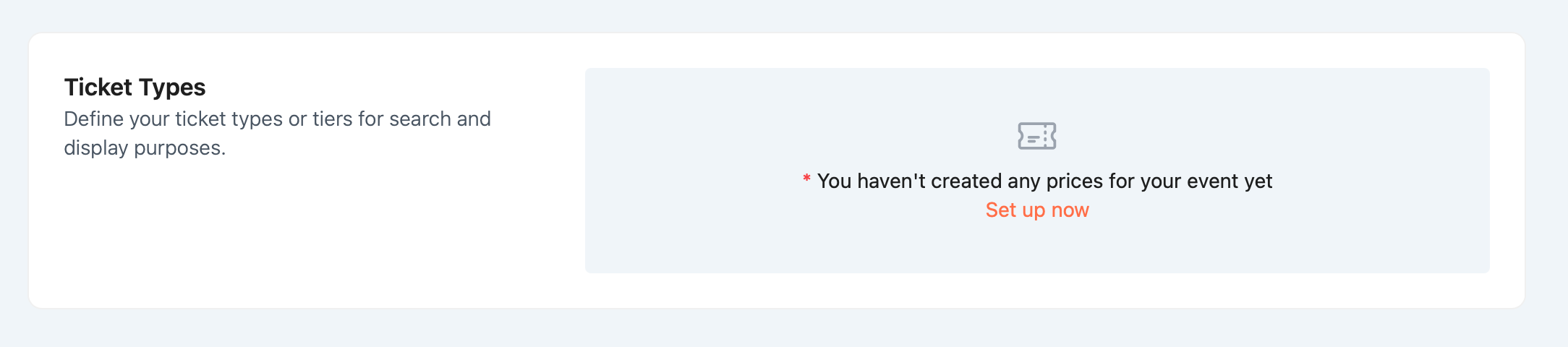
Click Set up now to begin.
Adding a Ticket Type
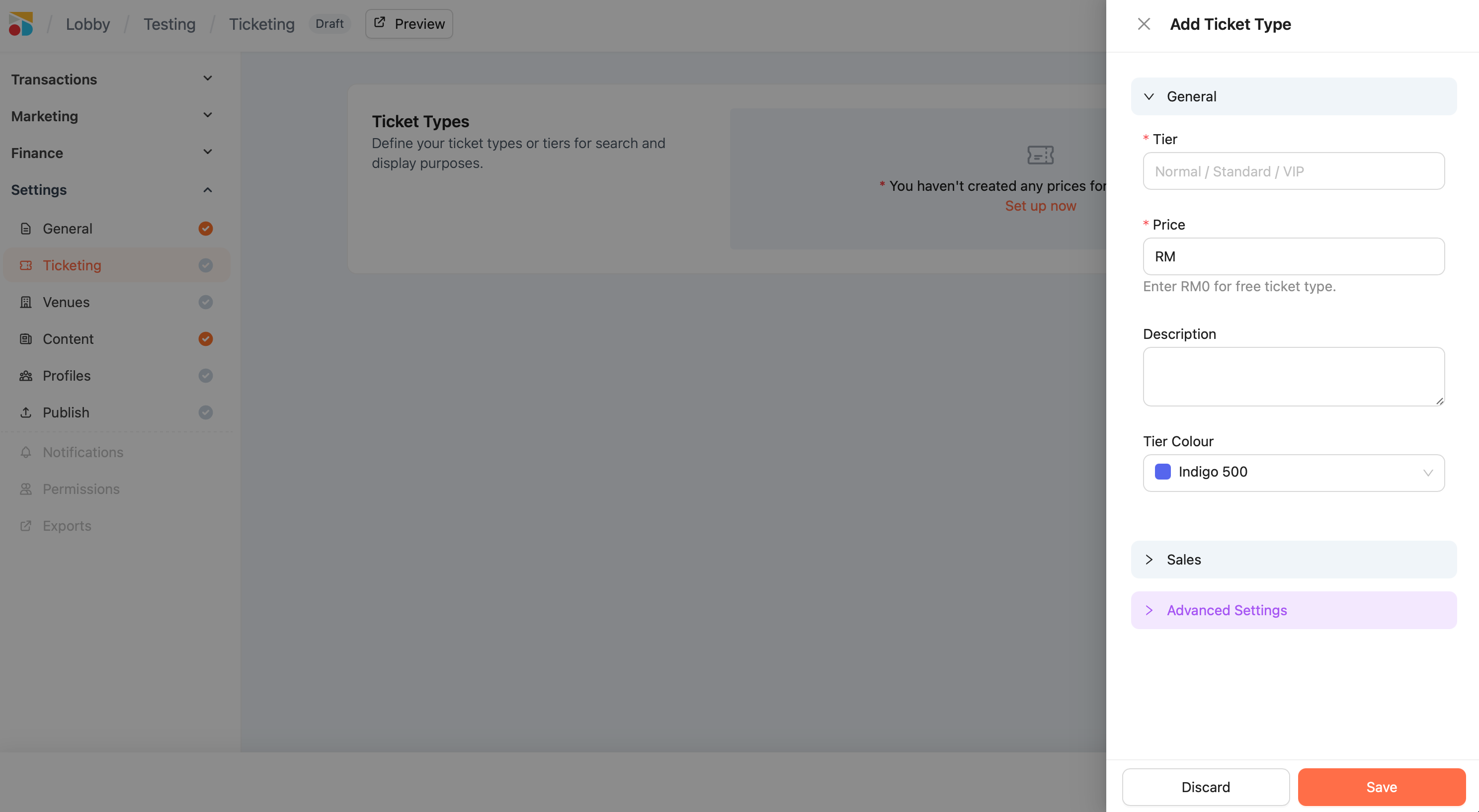
Each ticket type includes:
Tier Name : (e.g. “General Admission”, “VIP”, “Early Bird”)
Price : Set the ticket price in your default currency, which is based on your Organisation’s country setting.
⚠️ Want to change your default currency? You’ll need to update it in Organisation Settings before creating tickets.
You can also enter 0 for free tickets (e.g. RSVP or guest passes).
Description (Optional) : Add a short explanation of what this ticket tier includes. This will appear during checkout, right under the tier name — helping patrons understand what they’re buying.
📝 Good examples:
-
“Includes free drink”
-
“Front row seating”
-
“Access to post-show Q&A”
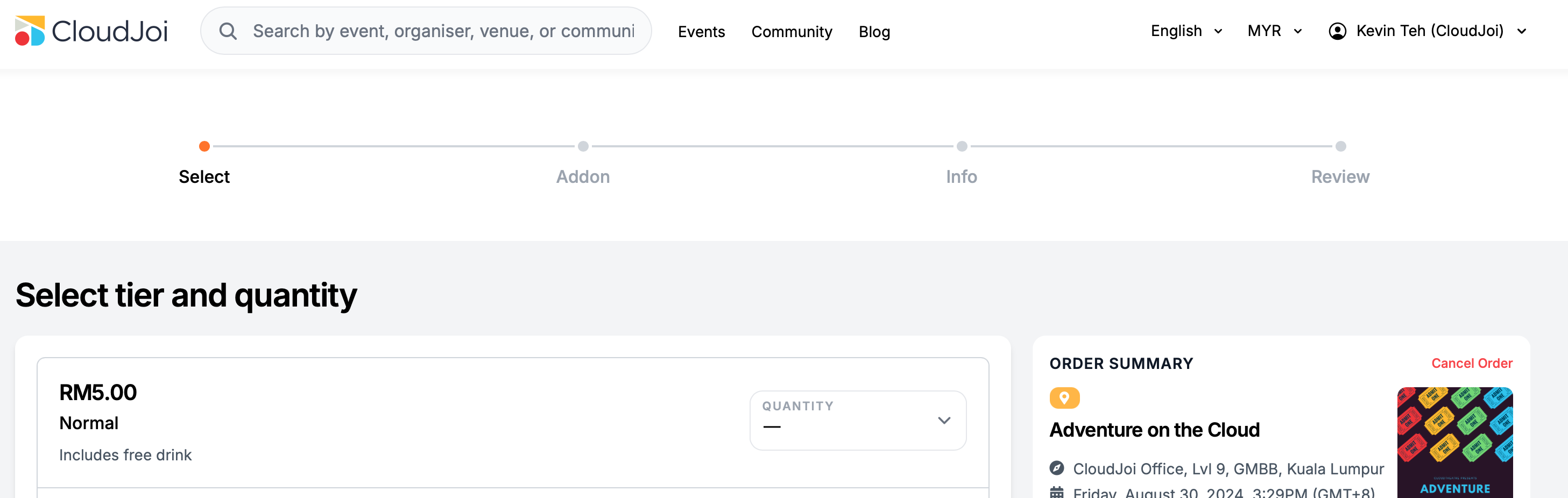
Tier Colour : Pick a colour to visually represent this ticket tier.
-
If your event uses Free Seating or General Admission, the colour is just for organiser reference.
-
If your event uses a Numbered Seat Map, this colour will appear on the map to help buyers identify which seats belong to which ticket tier.
🎨 Choose distinct colours if you have multiple pricing zones — it helps patrons spot the difference.
Sales Settings
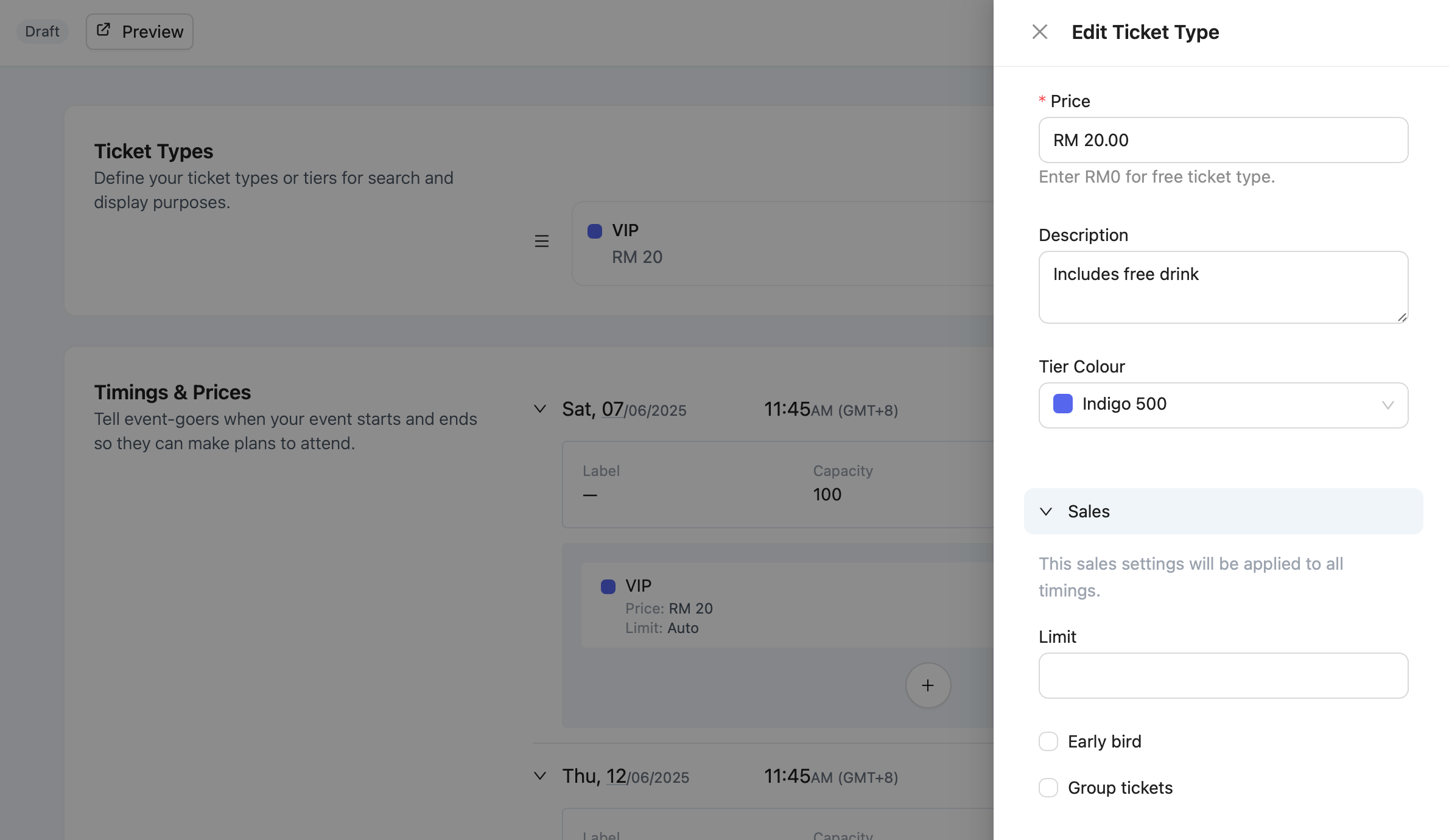
Under the Sales section:
-
Limit
Cap the number of tickets available under this tier. -
Toggle Options
-
Early Bird — great for limited-time discounts
-
Group Tickets — allow one person to buy for a group under a single order
-
💡 Capacity for each timing is shared across all ticket tiers assigned to it.
Assigning Ticket Types to Timings
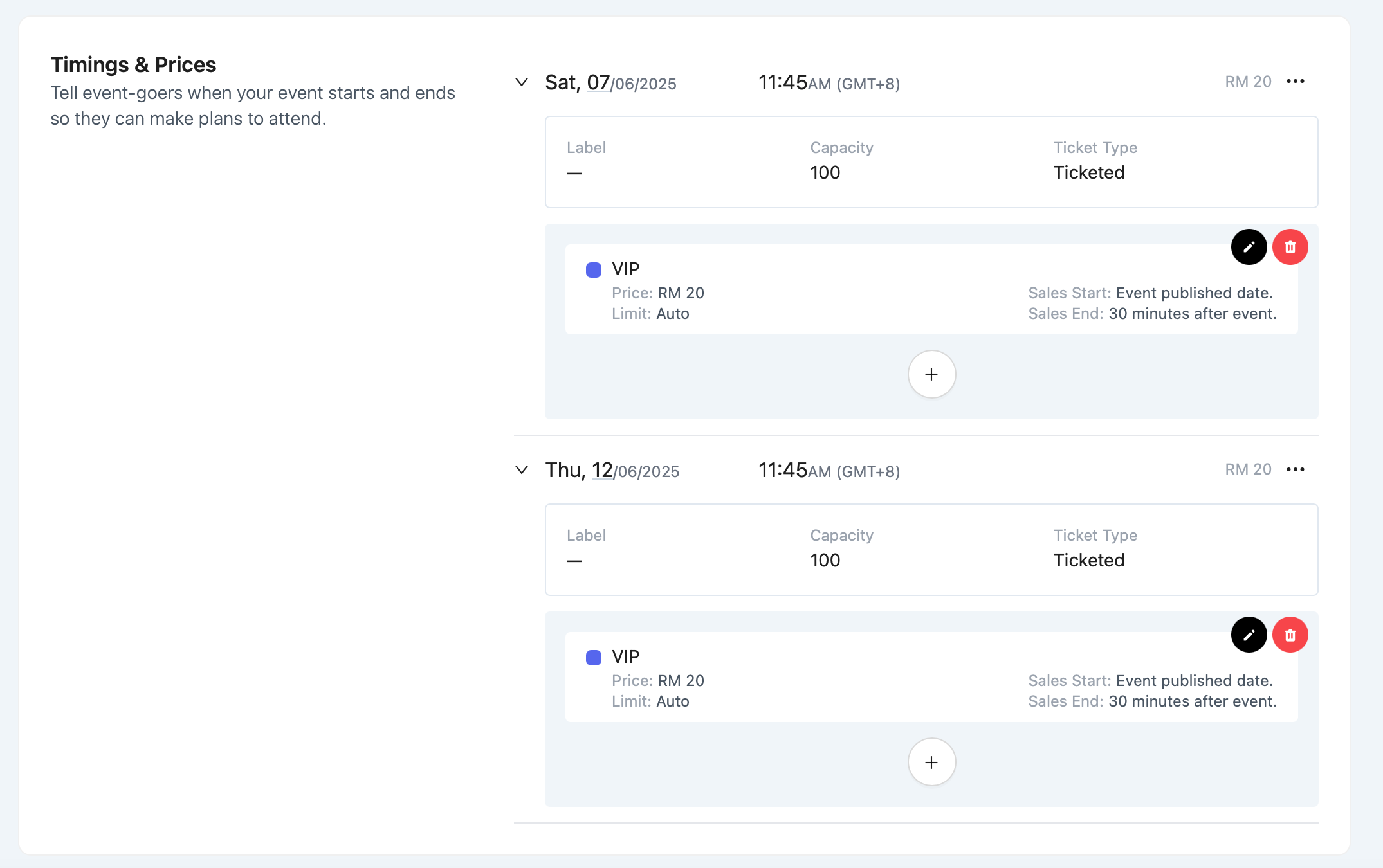
By default, every new ticket type is applied to all timings.
But you can customise this:
-
After creating a ticket, go to the Timings & Prices section.
-
Click into a timing.
-
You’ll see all ticket types listed — you can remove or reassign as needed.
⚠️ Always double-check your tickets per timing — especially if different prices apply on weekends, matinees, or special shows.
Editing or Deleting Tickets Tier
-
You can edit tickets any time before sales start.
-
Once a ticket type has been sold, only the description and limit can be edited.
-
You can delete a ticket type only if no orders have been placed.