If the CloudJoi mobile app is unavailable or not working, you can still manage attendee check-in directly from the CloudJoi Organiser Dashboard. This method allows you to check in guests using your web browser and access additional ticket management features.
How to Check In Using the Website
Step 1: Access your event
-
Log in to your CloudJoi Organiser Dashboard.
-
Navigate to Your Event in the event list.
Step 2: Go to the Tickets page
-
Click on Tickets in the event menu.
Step 3: Open the check-in function
-
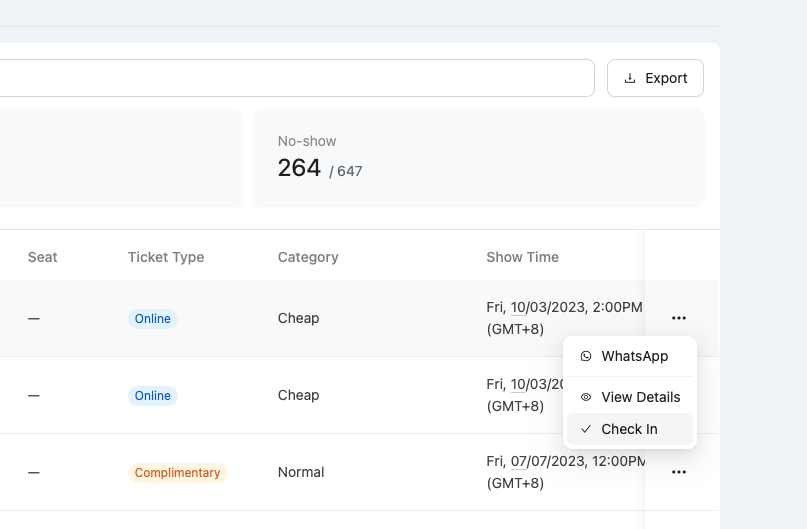
On the Tickets page, click the three dots next to the ticket order you want to manage.
-
Select Check-In from the dropdown menu.
Step 4: Mark the attendee as checked in
-
Once selected, the ticket will be marked as checked in.
-
Repeat this for each attendee as they arrive.
Additional Ticket Management Features
The Tickets page offers more than just check-in. You can also:
-
View detailed ticket information
-
Search for specific attendees by name or ticket number
-
Filter tickets by status (checked in, not checked in, refunded, etc.)
When to Use Website Check-In
-
If the mobile app is temporarily unavailable
-
If you need to check in attendees from a desktop or laptop
-
If you prefer to manage tickets in bulk from a larger screen