Once your ushers have signed up for their own CloudJoi ID, you’ll need to grant them access to your event so they can use the Organizer App for check-ins.
👥 Two types of access levels:
-
All Events Access
The usher can check in guests for all your past, current, and future events
Ideal for permanent team members or venue staff
-
**Single Event Access **
The usher can only access a specific eventGreat for freelancers or event-day-only staff
🛠 How to grant access
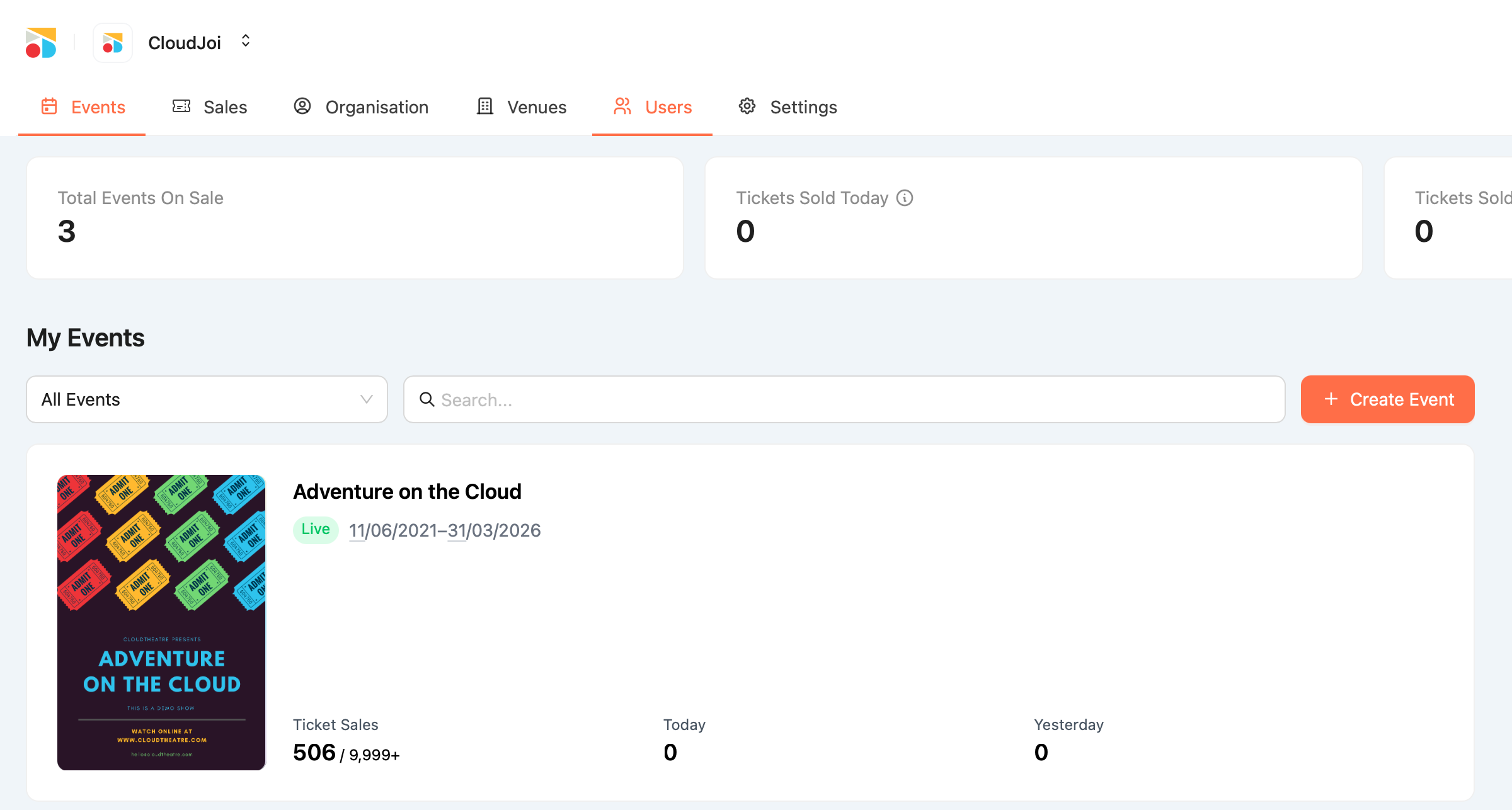
Option A: Grant All Events Access
-
Go to the main lobby of your CloudJoi Dashboard
-
Tap on the “Users” section
-
Tap on "Invite User"
-
Enter the usher’s email address (must match their CloudJoi ID)
-
Assign their role as Usher
-
Send the invitation
Option B: Grant Single Event Access
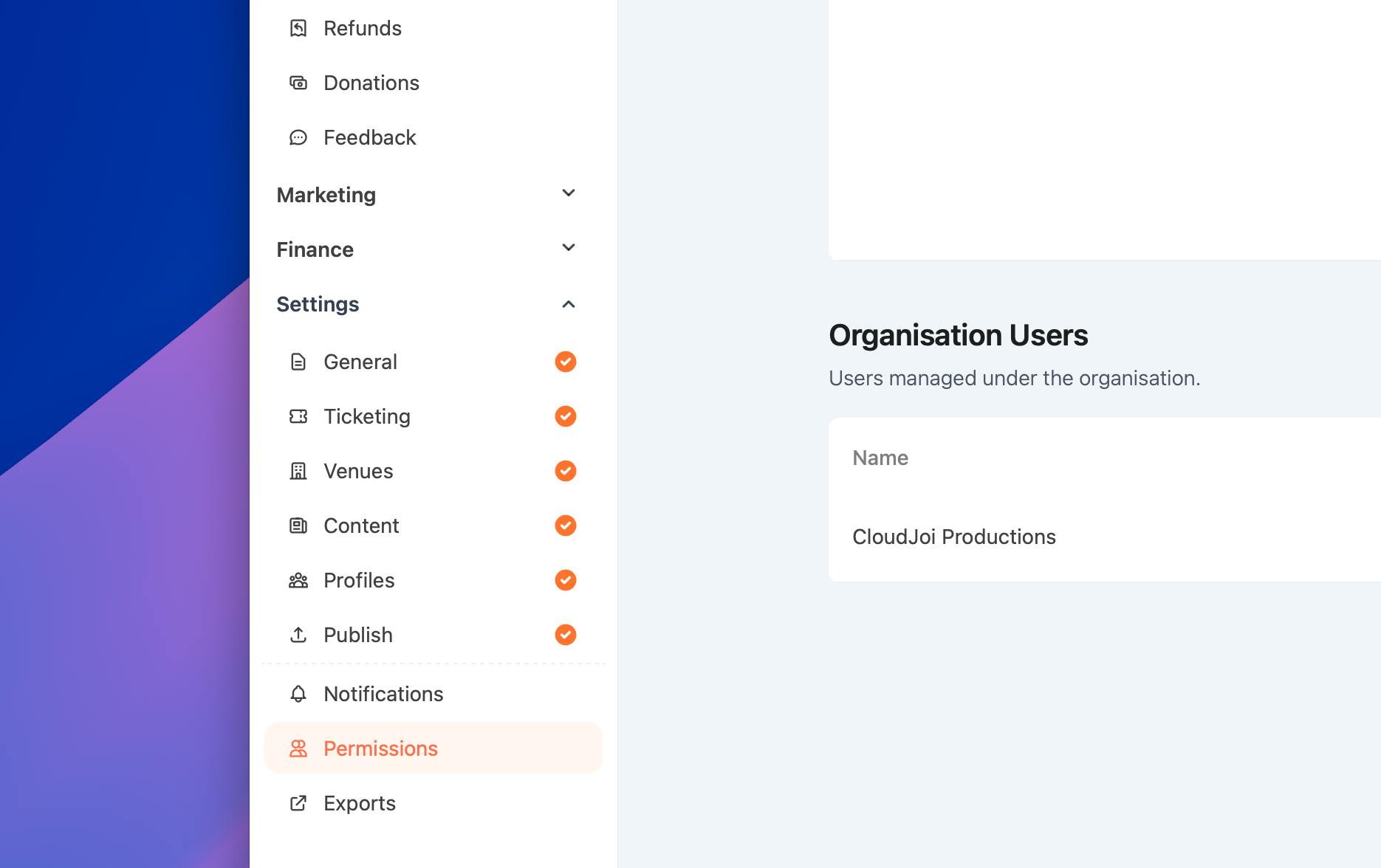
Open the specific event you want to give access to
-
Tap on Settings > Permissions
-
Add the usher’s email and choose Usher
-
Send invitation
📧 What happens next?
-
The usher will receive an email invite
-
They’ll need to accept it before access is activated
-
You can also resend the invite or send it via WhatsApp
🛑 Pro tip: Access not working?
-
Double-check the email address matches the usher’s CloudJoi account
-
Make sure they’ve accepted the invite
Still stuck? Email us at community@cloudjoi.com