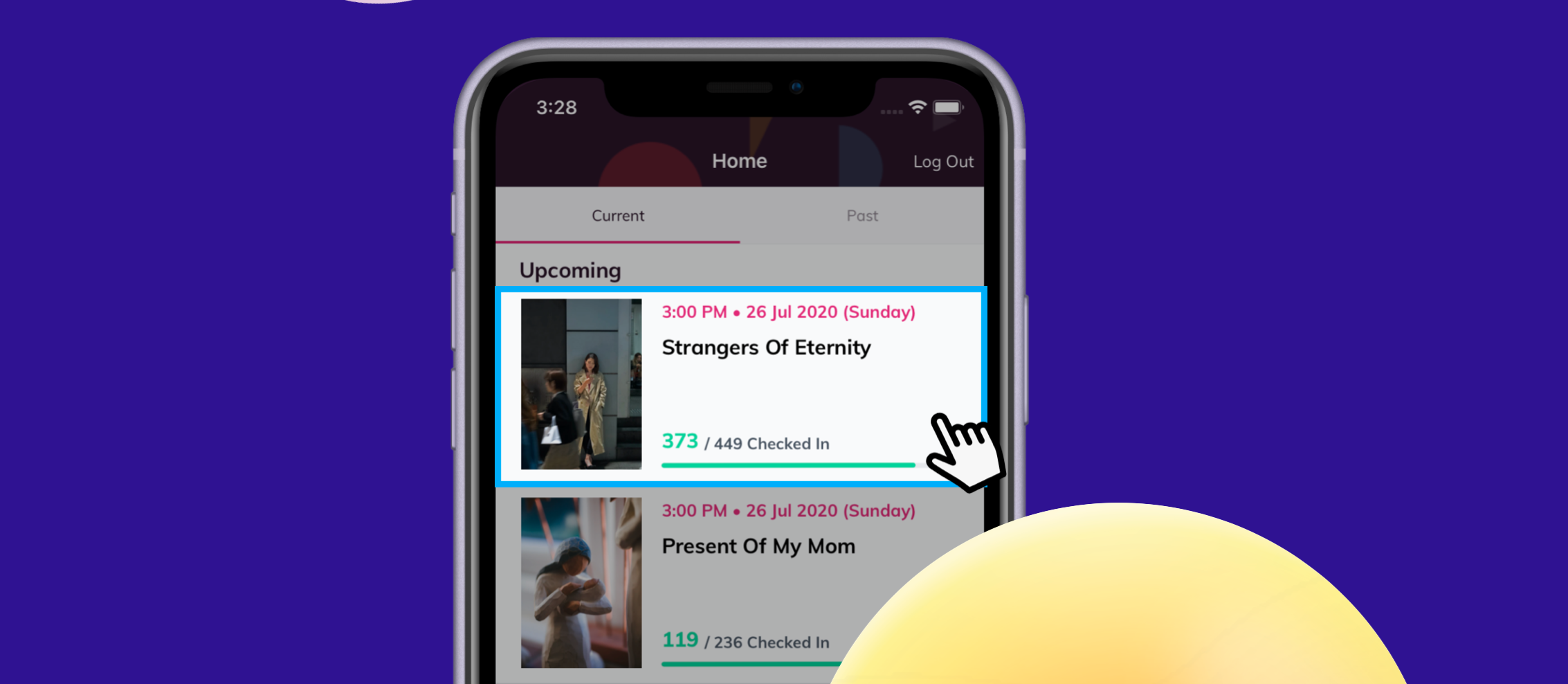
 Once your ushers log in and accept access, they’ll land on the Event Screen — the command center for check-ins.
Here’s a quick guide to what everything means, so your team can jump straight into action.
🎭 Event List
All the events they have access to will be listed here. Tap on the event name to enter the check-in screen.
🔍 Key Features on the Event Screen
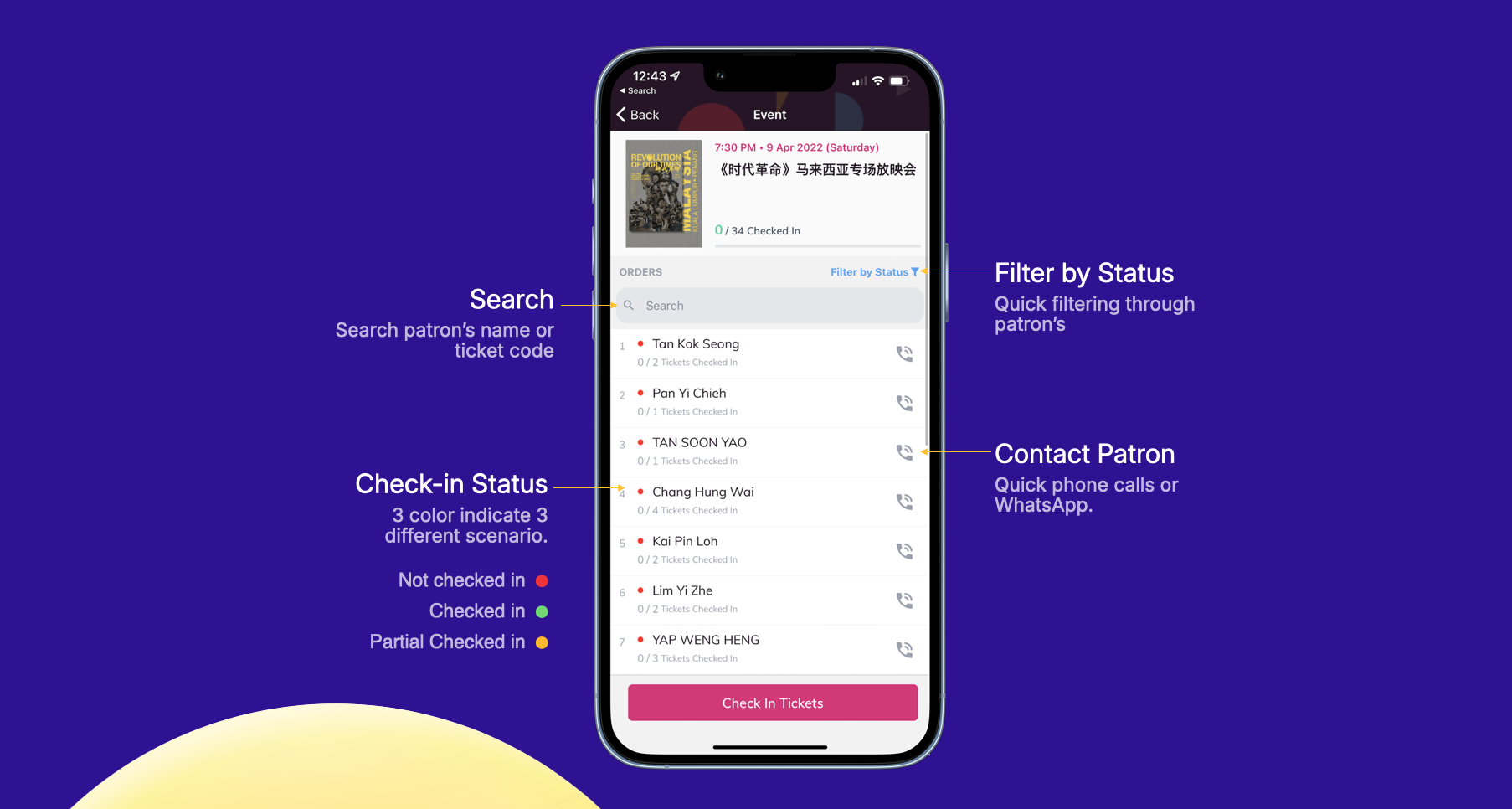
1. Search Bar
Search by:
-
Patron name
-
Ticket code
Great for quick lookups if the QR code isn’t available.
2. Check-In Status Filters
Helps ushers focus on who’s already arrived vs. who hasn’t.
-
🔴 Not Checked In
-
🟢 Checked In
-
🟠 Partially Checked In
you can find out about each details of the status here
3. Contact Patron
Tap the contact icon to call or WhatsApp the ticket holder instantly — handy for finding lost guests or resolving entry issues.
📋 Quick Tips
-
Always double-check you're on the right event
-
Use filters to manage queues faster
-
Keep brightness up and Wi-Fi on for best performance