After validating the ticket details, you’re ready to check the guest in. CloudJoi gives you two simple ways to do this — with a scanner or manually.
🧭 Two Check-In Methods:
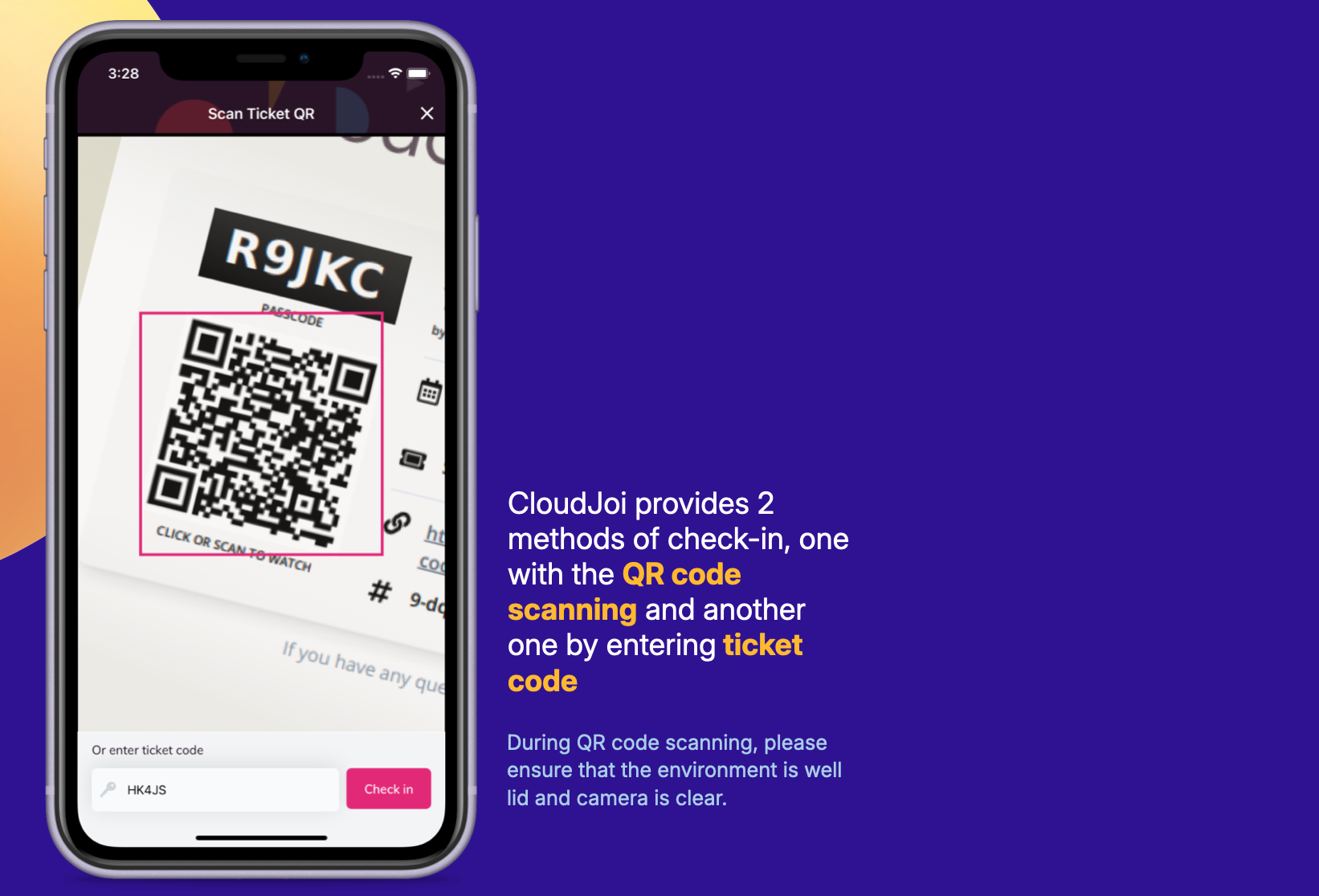
📷 1. Scan QR Code
-
Tap the “Check In Tickets” button
-
Point your phone camera at the ticket’s QR code
-
Wait for a confirmation (vibration + status update)
✅ Best for fast entry and printed/mobile tickets
🔤 2. Enter Ticket Code Manually
-
Tap the search bar on the event screen
-
Type in the guest’s ticket code
-
Select the correct ticket and confirm check-in
✅ Use this when:
-
QR is blurry, damaged, or cut off
-
Guests only have a ticket number or name
💡 Tips for smoother scanning
-
Make sure the camera is clean and well-lit
-
Avoid glares from phone screens
-
Zoom in if needed for smaller codes
Once scanned or entered, the ticket status will instantly update to 🟢 Checked In or 🟠 Partially Checked In (for groups).
Want to learn more about check-ins status? Click here
Once a ticket is validated, it’s time to check your guest in. CloudJoi makes it simple with two check-in methods — plus smart options for handling groups or late arrivals.
🧭 Two Check-In Methods:
📷 1. Scan QR Code
-
Tap the “Check In Tickets” button
-
Point your phone camera at the ticket’s QR code
-
Wait for a confirmation (vibration + status update)
✅ Great for printed or mobile tickets
🔤 2. Manual Ticket Code Entry
-
Use the search bar to find the guest by name or code
-
Tap the correct ticket, then check in
✅ Useful for blurry screens, screenshots, or if the QR doesn’t work
👥 Handling Group Check-Ins
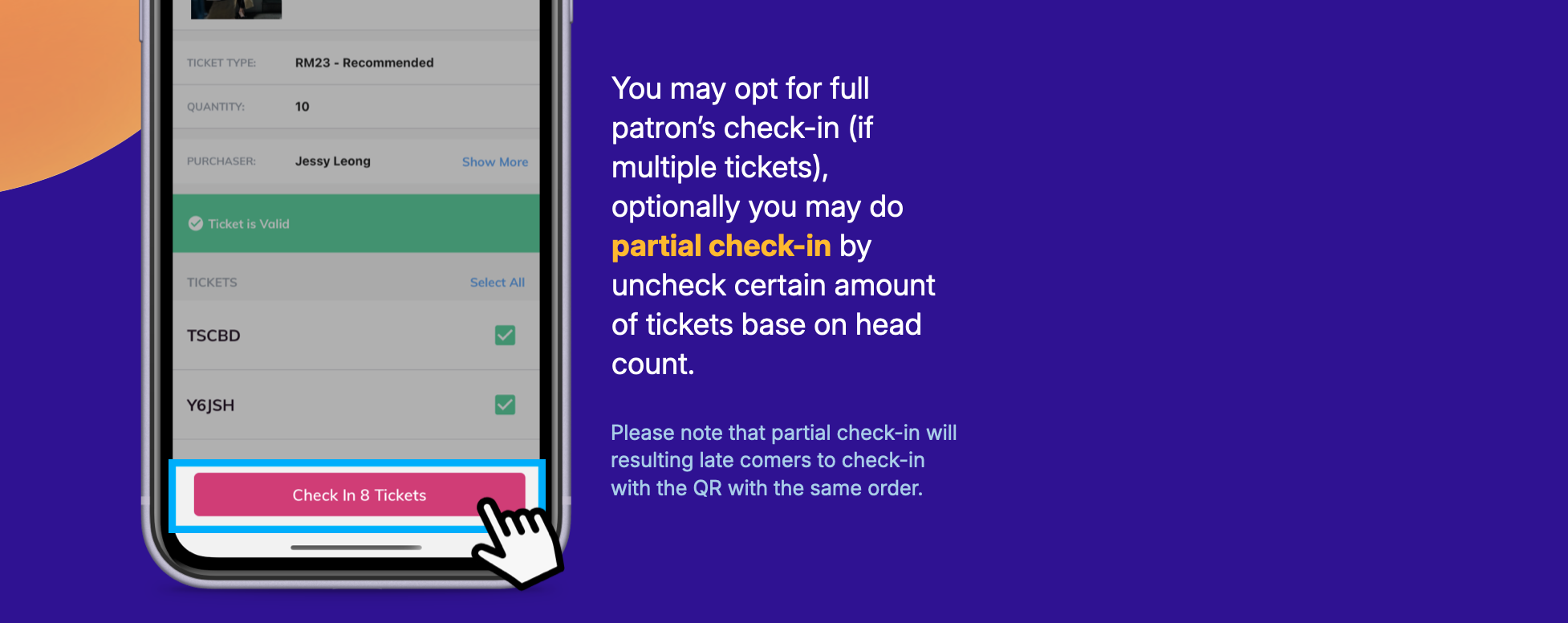 When a guest buys multiple tickets in one order, you’ll see how many seats are linked when they arrive.
🟢 Full Check-In
-
All guests in the order have arrived
-
Tap Check In All
🟠 Partial Check-In
-
Only some guests are present
-
Uncheck the number of tickets not in use
-
Check in only those who are here
Later arrivals can still check in using the same QR code — the system tracks what’s already scanned.
💡 Tips for Check-In Success
-
Always confirm how many guests are in the group
-
Scan first, then double-check names if needed
-
Keep your camera clean and screen brightness up
Once a check-in is successful, the system will update:
-
🟢 Fully Checked In
-
🟠 Partially Checked In (until all group members arrive)