To help drive urgency and set accurate expectations for your audience, CloudJoi automatically displays status tags based on real-time ticket availability. These tags appear on your event page during checkout — and they're updated automatically as tickets move.
This guide explains what each tag means and how it's triggered.
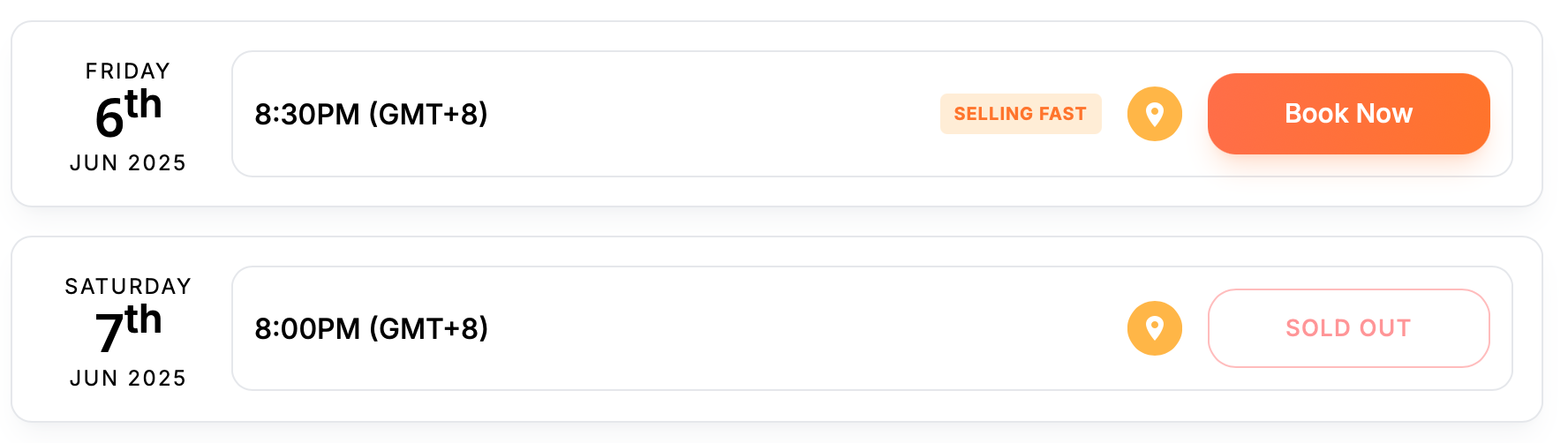
📍 Where Tags Are Displayed
-
On your event page, next to each timing
-
On each ticket tier at checkout
-
Inside your own dashboard under Settings > Ticketing
🟡 Selling Fast
What it means:
- Over 50% of the tickets have been sold for that timing or tier
Why it shows up:
-
Creates urgency for undecided buyers
-
Helps you spot timings that are outpacing others
🔴 Last Few
What it means:
- There are 10 tickets or fewer left for that timing or tier
Why it shows up:
- Warns patrons to act quickly before their preferred slot is gone
🟣 Fully Queued
What it means:
-
All tickets are temporarily held by patrons in the checkout flow
-
No tickets currently available, but might be released if:
-
Payment fails
-
Cart is abandoned after grace period
-
Why it matters:
-
Prevents overselling
-
Lets patrons know they can wait and refresh
⚫ Sold Out
What it means:
-
All tickets have been fully purchased or manually capped
-
No more inventory available for that timing or tier
Note:
If capacity is increased or a new tier is added, the status will update automatically.
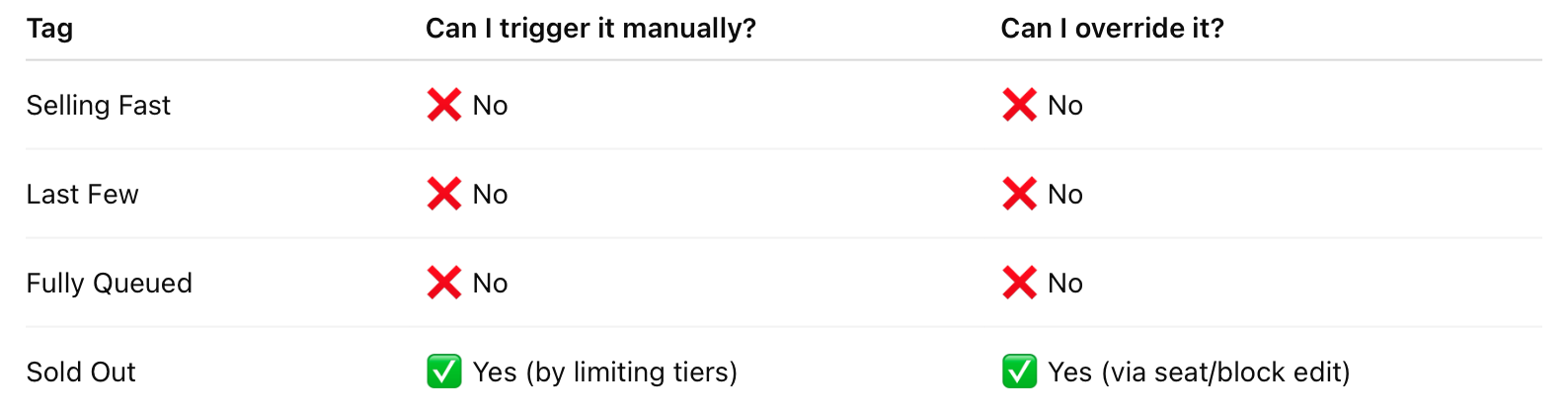
✅ Organiser Controls
🧠 Tips for Organisers
-
Use "Selling Fast" or "Last Few" as social proof in your marketing
-
Don’t over-rely on "Fully Queued" — it’s dynamic and can drop off quickly
-
Combine visible tier status with promo codes or urgency copy