Need to invite a team member to help with check-ins, view sales, or manage events? CloudJoi lets you add users at both the organisation or event level, depending on what you want them to access.
This guide walks you through how to invite, resend, and remove users — without needing to share your own login.
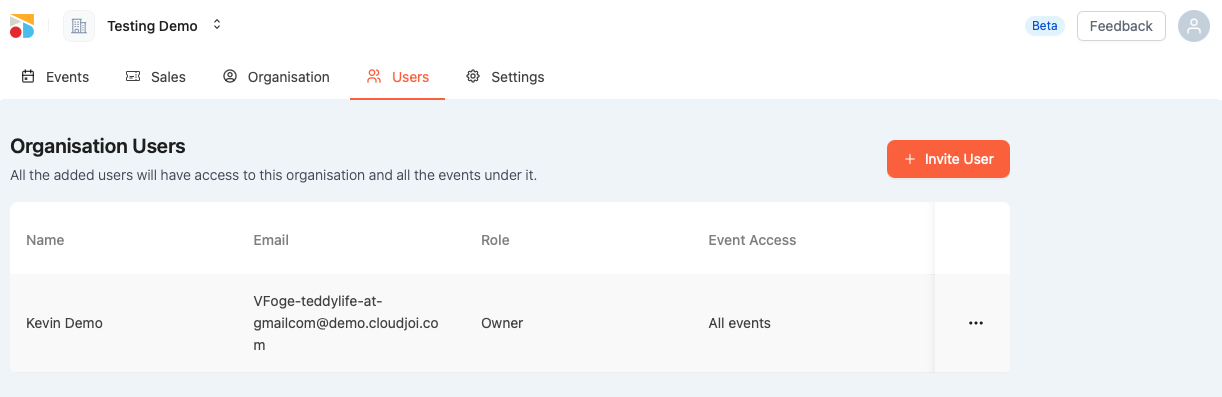
Adding an Organisation-Level User
-
Go to Settings > Users
-
Click “Invite User”
-
Enter the person’s email address
-
Choose a role (Admin, Viewer, etc.)
-
Click Send Invite
🔒 The invited user must already have a CloudJoi ID to receive access.
✅ Once accepted, they’ll be able to access all events in this organisation.
Adding an Event-Level User (Single Event Only)
-
Go to your event dashboard
-
Click Settings > Permissions
-
Click “Invite User”
-
Enter email + assign role (Usher, Box Office, Viewer)
-
Click Send
✅ This user will only see that one event in their dashboard.
🔁 Resending an Invitation
If the invite email wasn't received:
-
Go to the Users page (org or event level)
-
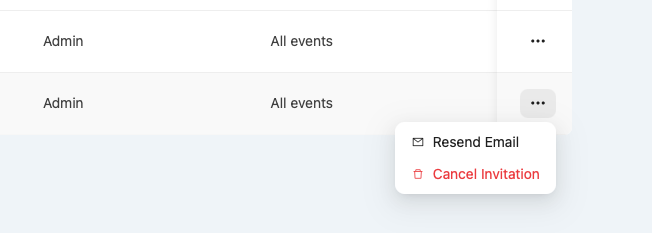
Click the 3-dot menu next to the user’s name
-
Select “Resend Invitation” or “Copy Invite Link” to send via WhatsApp or direct message
🗑 Removing a User
To revoke access:
-
Go to Users Page
-
Find the user
-
Click the 3-dot menu > Remove
🚫 Once removed, they will no longer be able to access your event(s).