Your notifications are more than just reminders — they’re opportunities to connect with your audience at key moments. CloudJoi lets you customise certain messages to reflect your own tone, style, and event details.
✏️ Where You Can Add Custom Messages
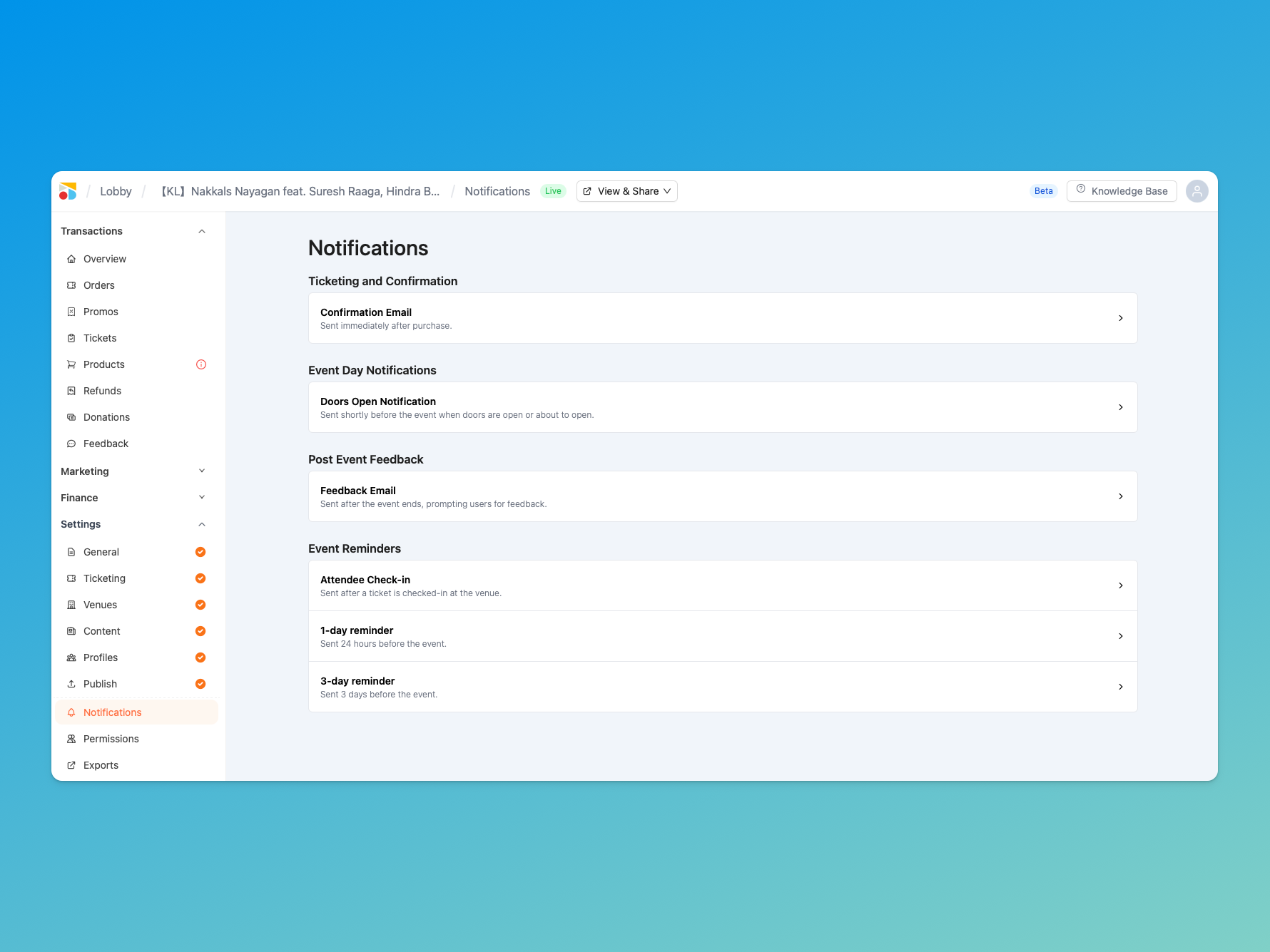
Currently, you can add custom messages to these notifications only:
-
Order Confirmation Email
-
Doors Open Notification
-
Feedback Email
For other notifications (such as reminders or check-in alerts), you can disable them but not customise their content.
➕ How to Add a Custom Message
-
Go to [Your Event Name] > Settings > Notifications
-
Click on one of the notifications that supports custom messages (Confirmation, Doors Open, or Feedback).
-
Select the three dots (···) at the top right corner of the message.
-
Choose Customise.
-
Enter your message in the editor, then click Save.
🖋 About the Message Editor
The custom message field uses a WYSIWYG editor (What You See Is What You Get).
-
You can format text with headings, tables, images, and more.
-
For a full guide, check here: Using the WYSIWYG Editor.
🧼 Best Practices
✅ Use custom messages to welcome your audience and share essential info (e.g., venue maps, dress code, parking details).
✅ Keep it short and engaging — most people will read on mobile.
✅ Add visual elements (logos, images, tables) to make your message more scannable.
✅ For notifications you don’t need, simply click in to disable them.